Canva Wedding Invitations: The Complete Guide
Designing a suite in Canva, where the free line ends, getting it printed without disappointment, and the mistakes that quietly ruin a lovely design.
Canva has quietly become the tool a huge number of couples reach for first when they want to design their own wedding invitations. It is easy to see why: it is free to start, it runs in a browser, and it turns a blank page into a finished suite without any design training. But "easy to start" and "easy to do well" are not the same thing, and a wedding invitation carries expectations that a birthday flyer does not. This guide covers what Canva is, how to design an invitation in it properly, where its free and paid lines fall, how to get it printed without disappointment, and the mistakes that quietly wreck otherwise lovely designs.
The short version
- Canva is a freemium design tool, free to start with premium elements and print services layered on top.
- Templates are a starting point, not a finish line: change fonts, colours and spacing so yours is not one of thousands.
- Printing is where DIY fails, so set bleed, resolution and paper before you fall in love with a screen version.
- Watch the licence, because some elements and fonts are only free for personal, non-resale use.
What Canva is and why couples use it
Canva is a graphic design platform founded in 2013 in Perth, Australia, by Melanie Perkins, Cliff Obrecht and Cameron Adams. Its whole premise is a drag-and-drop editor that lets people with no design background make professional-looking visuals, and it runs on a freemium model: the core tool is free, with premium elements, fonts and print services available on paid tiers. For wedding invitations that combination is powerful, because you can produce a coordinated suite, invitation, RSVP, details card and even a menu, from one editor for little or no money.
It helps to remember what an invitation is meant to do. Historically, formal wedding stationery was engraved or letterpressed and carried strict etiquette, mailed five to eight weeks before the day and written in careful third-person language. Canva does not free you from those expectations; it simply hands you the typesetting tools that used to belong to a professional printer. The etiquette is still yours to get right, which is why pairing the tool with our guide to wedding invitation wording matters as much as the design itself.
Designing your invitation, step by step
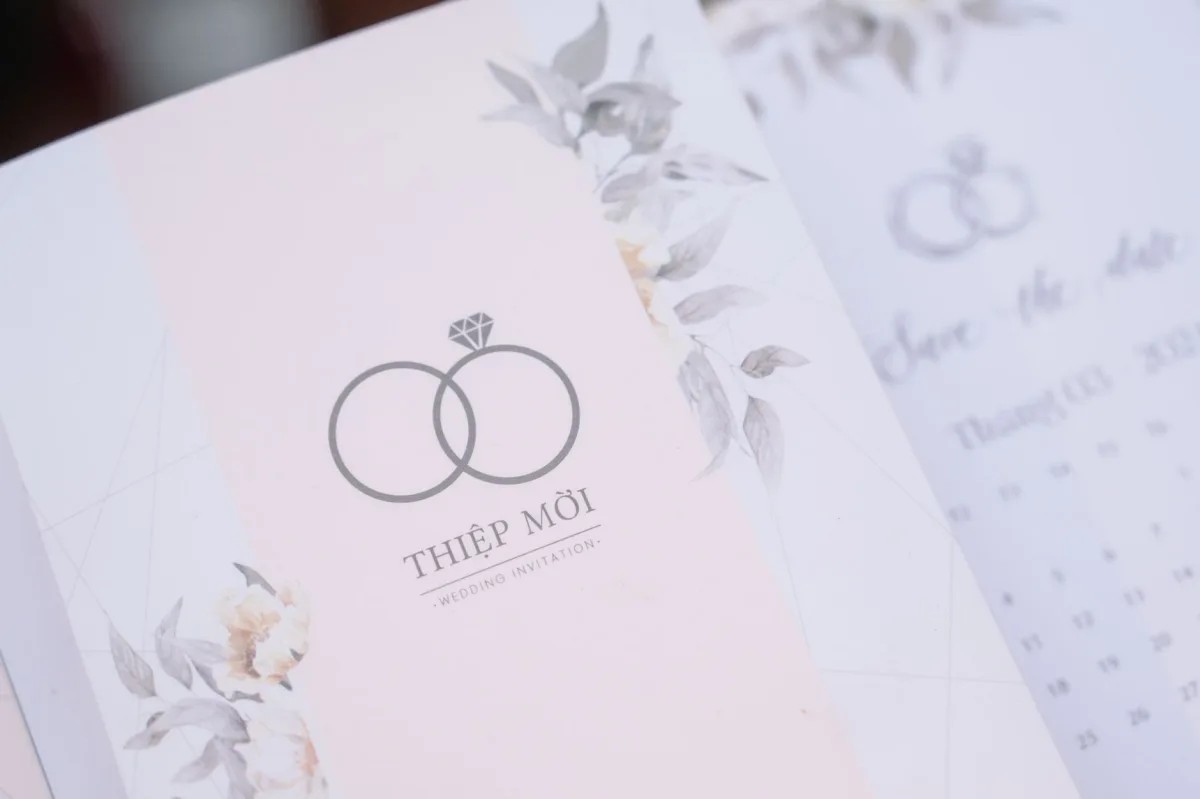
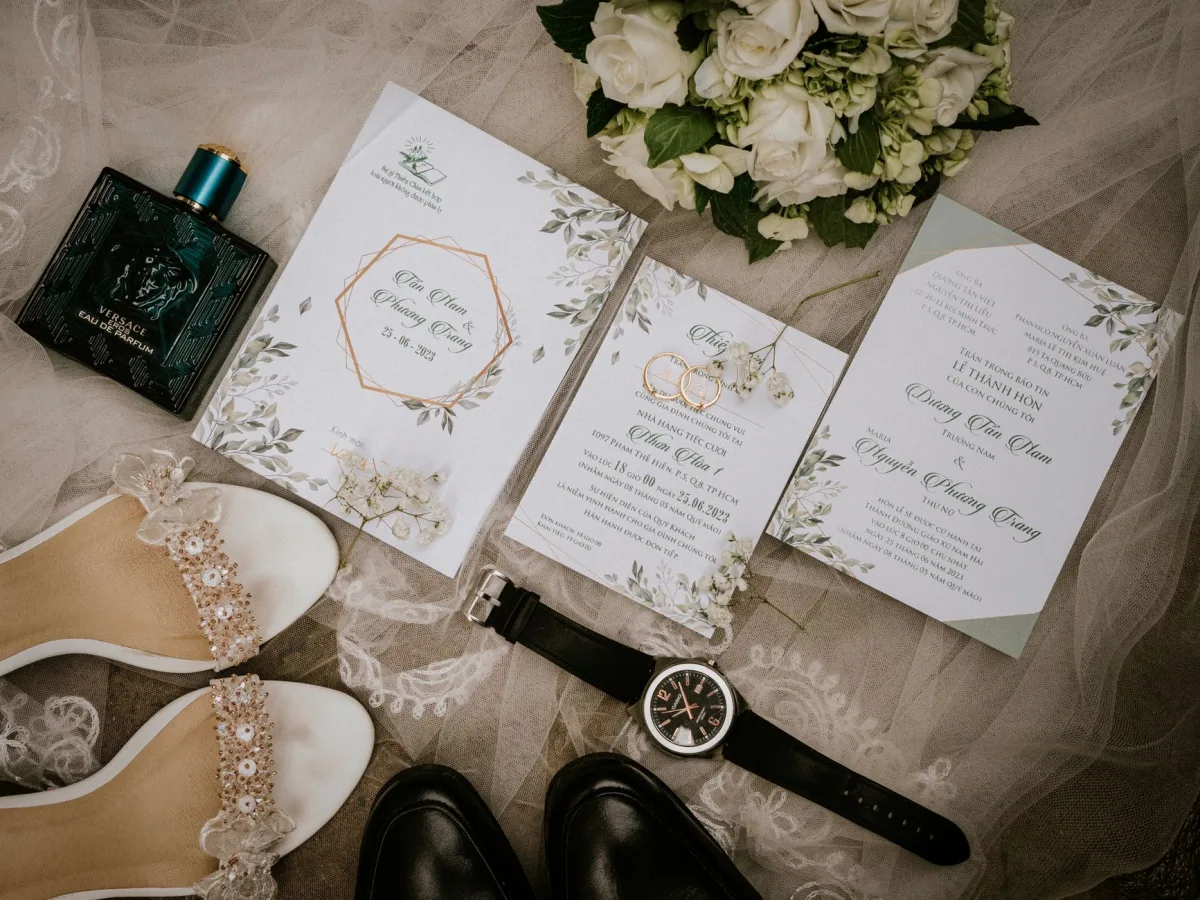
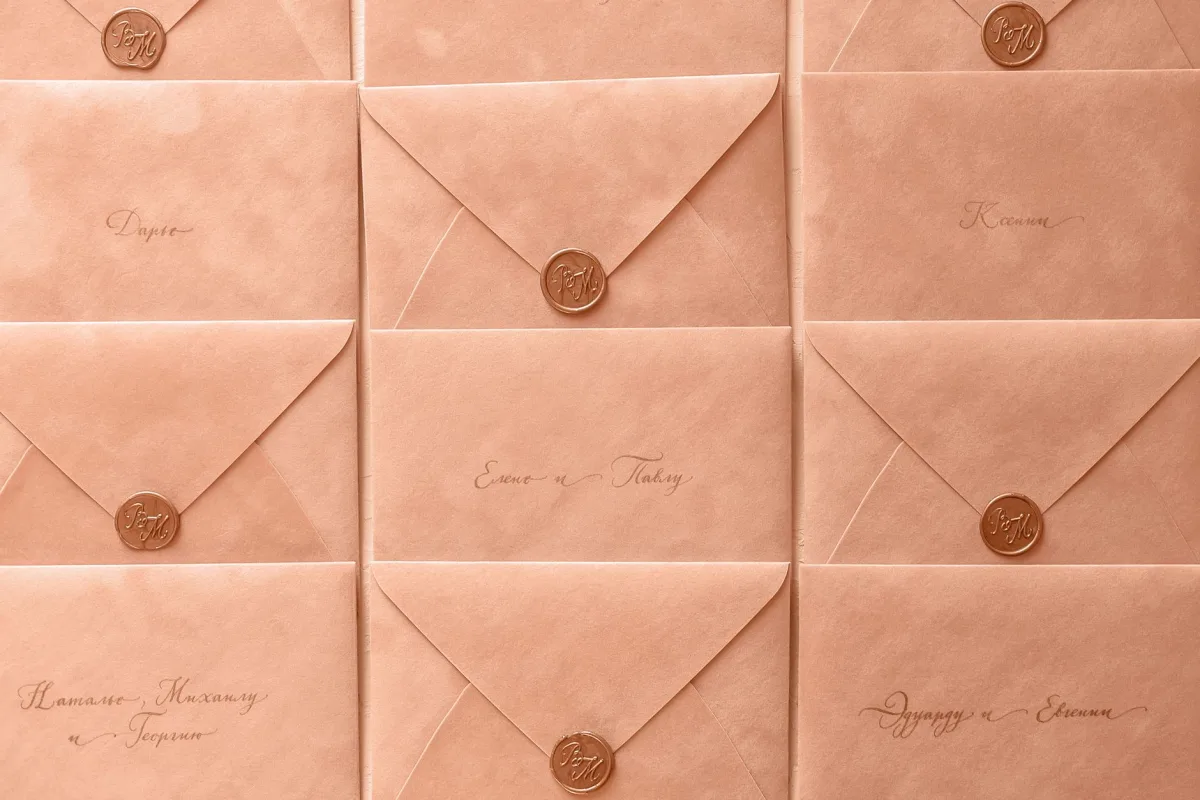
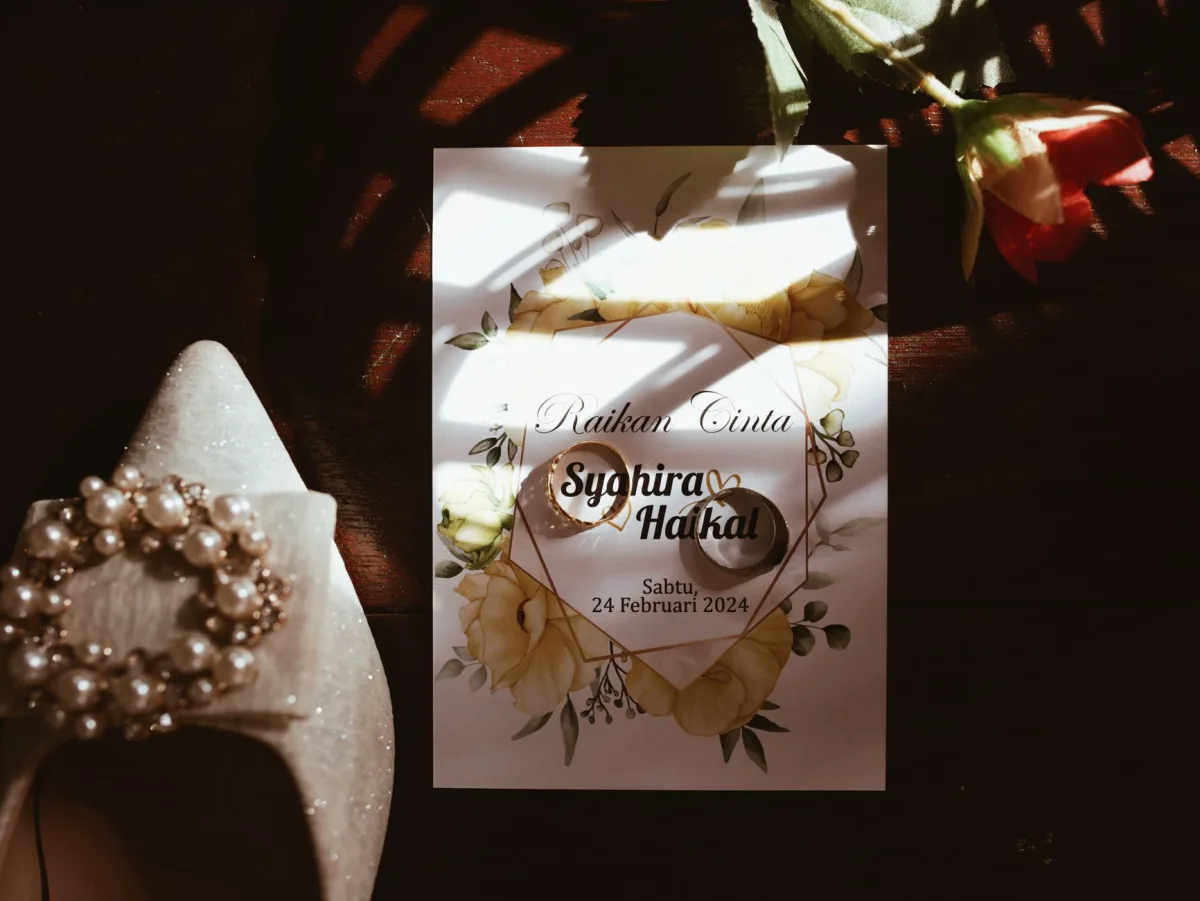
The fastest route to a good result is to start from a template and then make it unmistakably yours. Search Canva's wedding invitation templates, pick one whose layout and mood you like rather than its exact colours, and treat it as scaffolding. The couples whose invitations look bespoke almost always change three things immediately: the fonts, the colour palette and the spacing.
Swap the template's fonts for a pairing that matches your wedding, usually one elegant display font for names and headings and one clean, readable font for the details. Replace the colours with your actual palette so the invitation rhymes with the rest of the day. Then give the text room to breathe, because generous margins and white space are the single biggest tell between an amateur and a polished layout. Keep the information hierarchy clear: the couple's names largest, then the date and venue, then the practical details in smaller type. When the design is set, build the matching RSVP and details cards from the same elements so the suite reads as one family.
The free line and the paid line
Canva's pricing catches people out because the boundary is inside the editor, not at the checkout. Much of what you need is genuinely free, but premium elements, some fonts, certain photos and graphics, and the higher-quality stock are marked with a small crown or watermark. You can design an entire invitation for free if you stick to free assets, but the moment you drop in a premium flourish, you must either pay for it or subscribe to download without the watermark.
Free tier
The editor, thousands of free templates, many fonts and elements, and standard downloads. Enough to make a complete, attractive invitation at no cost.
Premium elements
Marked with a crown. Individual premium items can be bought one at a time, or unlocked in bulk with a paid subscription.
Canva Print
An in-app service that prints and ships your design on card stock. Convenient, though not always the cheapest route versus a local printer.
Print-ready export
Downloading a high-resolution PDF with crop marks and bleed, which you can take to any printer you choose.
The practical tip is to decide your route before you design. If a single crowned element is load-bearing to the whole look, either commit to paying or find a free equivalent early, rather than rebuilding the layout at the end. If you would rather not wrestle with any of this, our roundup of the best wedding invitation makers compares Canva against dedicated tools.
Getting it printed without disappointment
This is where most DIY invitations fall down, because a design that glows on a screen can print dull, blurry or cropped if the file is not prepared for paper. Three settings do most of the work. First, resolution: design at print size and export at high resolution so text and lines stay crisp, never screen-resolution. Second, bleed: extend any background colour or image slightly past the trim edge so the printer's cut does not leave a thin white sliver. Third, colour: screens glow in RGB while presses print in CMYK, so bright, saturated colours can shift and dull in print. Order a single proof before committing to the full run, every time.
Then there is paper, which the screen cannot show you at all. Weight, texture and finish transform the same design, and a heavy, uncoated card feels like a wedding while thin, glossy stock feels like a flyer. Whether you use Canva Print or export a print-ready PDF for a local printer, hold the physical proof in your hand before you approve dozens or hundreds of copies. This is also the moment to decide whether you want print at all, because our guide to digital wedding invitations covers sending the same Canva design electronically instead.
The mistakes that quietly ruin a Canva invitation
Most Canva regrets are avoidable and repeat themselves across thousands of weddings. The commonest is leaving the template almost untouched, so the invitation is instantly recognisable as a stock design that dozens of other couples used the same season. Change enough that yours has a fingerprint.
Close behind are the technical slips: exporting at screen quality so print comes out fuzzy, forgetting bleed so the cut clips the edge, and cramming every scrap of information onto the front until nothing is legible. Proofreading is the cruellest one, because a typo in a name, date or venue is permanent once the run is printed, so read it aloud, check it against a calendar, and have two other people check it too. Finally, mind the licensing: some free elements and fonts are licensed for personal, non-commercial use only, which is fine for your own wedding but a problem if you plan to sell your design to others. Get these right and Canva does exactly what it promises: a beautiful suite, on your terms, at a fraction of a stationer's price.
The bottom line
Canva makes designing your own wedding invitations genuinely achievable, and for a free browser tool it is remarkably capable. The winners treat the template as a starting sketch, personalise the fonts, colours and spacing until it feels like theirs, understand exactly where the free line ends and the premium line begins, and respect the physics of print by setting resolution and bleed and ordering a proof. Do that, keep the wording correct and the licence clean, and you get a suite that looks bespoke for a fraction of the traditional cost. On matrimony360 we treat the invitation as the first thing your guests hold, so it is worth the extra hour to get it right.
Frequently asked questions
Are Canva wedding invitations really free?
They can be. Canva runs on a freemium model, so the editor, thousands of templates and many fonts and elements are free, and you can design and download a complete invitation without paying if you stick to free assets. Costs appear when you use premium elements marked with a crown, subscribe to unlock them in bulk, or use Canva's print-and-ship service. Physical printing is a separate cost either way, whether through Canva or a local printer, so "free" usually means the design, not the paper.
Can I print Canva invitations at a professional printer?
Yes. You do not have to use Canva Print. Export your finished design as a high-resolution, print-ready PDF with crop marks and bleed, and take that file to any local or online printer. This often gives you more control over paper stock and finish, and can be cheaper for larger runs. Just make sure you designed at the correct print size, included bleed, and ordered a single proof first, because a local printer will print exactly what your file specifies.
Why do my Canva invitations look blurry when printed?
Almost always because the file was exported at screen resolution rather than print resolution, or the design was made small and scaled up. Design at the actual print size, use high-resolution or vector elements rather than tiny stretched images, and export a high-quality PDF for print rather than a web PNG. Colours can also shift because screens use glowing RGB while presses use CMYK ink, so order a physical proof to catch both problems before the full run.
Is it legal to use Canva designs for my wedding?
For your own wedding, yes. Canva's free and premium content is licensed for personal and many commercial uses, and printing invitations for your own event falls comfortably within that. The care is needed if you plan to sell your invitation template or design to other couples, because some individual elements and fonts carry restrictions on resale and redistribution. For a one-off personal wedding suite you are on safe ground; if you intend to run a stationery business, read the specific element licences.
Should I use Canva or a dedicated invitation service?
Canva suits couples who want full creative control and the lowest cost, and who are comfortable handling their own printing and file setup. A dedicated invitation service or stationer suits couples who want a guided, polished process, premium paper and finishes, and someone else to manage the print quality. Many people start in Canva to explore ideas and their palette, then decide whether to print it themselves, use Canva Print, or hand a designer the direction. Neither is wrong; it is a trade between control and convenience.